

Description
Download Drive Mounter – free network drive mapper tool for Windows & macOS
Overview
Drive Mounter is a lightweight yet powerful application designed to simplify the way you connect to network‑attached storage (NAS) devices, shared folders, and remote drives. Instead of manually typing UNC paths or remembering complex credentials, Drive Mounter automatically discovers available network shares on your local subnet and mounts them as local drives with a single click. The tool is ideal for home users who need quick access to media libraries, small‑business owners who regularly back up files to a central server, and IT professionals who manage multiple storage endpoints across an office network. By keeping your network drives continuously connected, Drive Mounter eliminates the frustrating “drive not found” errors that can interrupt workflows and cause data loss during backups.
Beyond its core auto‑mount capability, Drive Mounter offers a clean, intuitive interface that lets you label each mapped drive, assign custom icons, and set reconnection schedules. The application runs silently in the background, monitors network changes, and re‑establishes connections the moment a previously unavailable share comes back online. Security is baked in – credentials are stored using Windows Data Protection API (DPAPI) on Windows and the macOS Keychain on macOS, ensuring that passwords never appear in plain text on disk.
Whether you are a gamer looking to stream large game libraries from a NAS, a photographer needing instant access to a high‑capacity backup drive, or a developer pulling source code from a shared repository, Drive Mounter removes the repetitive steps of manual mapping. The free version provides all essential features, while a modest paid upgrade unlocks premium options such as scheduled sync, advanced logging, and priority support.
Key Features of Drive Mounter
- Automatic Network Discovery: Scans your LAN for SMB, AFP, and NFS shares without any configuration.
- One‑Click Mounting: Click a discovered share and it appears as a local drive letter (Windows) or mounted volume (macOS).
- Persistent Connections: Remembers mapped drives and automatically reconnects after reboots or network outages.
- Secure Credential Storage: Uses DPAPI on Windows and Keychain on macOS to encrypt passwords.
- Custom Drive Labels & Icons: Personalize each mapped drive for easy identification in Explorer or Finder.
- Scheduled Re‑connect & Sync: (Premium) Define times when drives should be refreshed or synchronized.
- Lightweight Background Service: Consumes less than 15 MB RAM and negligible CPU while idle.
- Backup Ready: Works seamlessly with popular backup tools (e.g., Acronis, Macrium, Time Machine) by presenting network shares as local drives.
- Multi‑Language Support: Interface available in English, Spanish, French, German, and Chinese.
- Free Version Available: Full core functionality without a license key; optional paid upgrade for advanced features.
Each feature has been engineered with usability in mind. For instance, the automatic discovery engine runs a lightweight broadcast on port 445 (SMB) and port 548 (AFP) every five minutes, which is enough to catch new devices without flooding the network. The custom labeling system integrates directly with Windows Explorer’s “Label” column, so you can see “Media NAS” instead of “Z:”. On macOS, the app adds entries to /Volumes using the standard mount point convention, keeping the Finder view tidy.
Security‑focused users will appreciate that no passwords are ever transmitted in clear text; the app negotiates SMB3 or AFP over encrypted channels whenever the remote server supports it. Even when older protocols are used, the stored credentials remain encrypted on the local machine, protecting them from casual snooping.
Overall, Drive Mounter’s feature set strikes a balance between simplicity for casual users and depth for power users who need automation, making it a versatile tool for virtually any Windows or macOS environment.
Installation, Usage & Compatibility
Getting started with Drive Mounter is intentionally straightforward. The installer is available as a single .exe for Windows 10/11 (and Windows 7/8.1) and a .dmg for macOS 10.12 Sierra and later. Follow these steps to install and begin mapping network drives:
- Download the installer: Visit the official website and click the “Download for Windows” or “Download for macOS” button. The file size is under 10 MB, ensuring a quick download even on slower connections.
- Run the installer: On Windows, double‑click the
.exefile and accept the license agreement. The wizard will guide you through a typical installation; choose “Standard” unless you need a custom installation path. On macOS, open the.dmg, drag the Drive Mounter icon into the Applications folder, and launch it from there. - Grant necessary permissions: Windows will request administrator rights the first time to register a system service that runs in the background. macOS will ask for Full Disk Access so the app can create mount points; this is required for seamless operation.
- Configure initial settings: Upon first launch, the app presents a brief wizard asking whether you want the auto‑mount service to start on boot and whether to enable notifications for newly discovered shares.
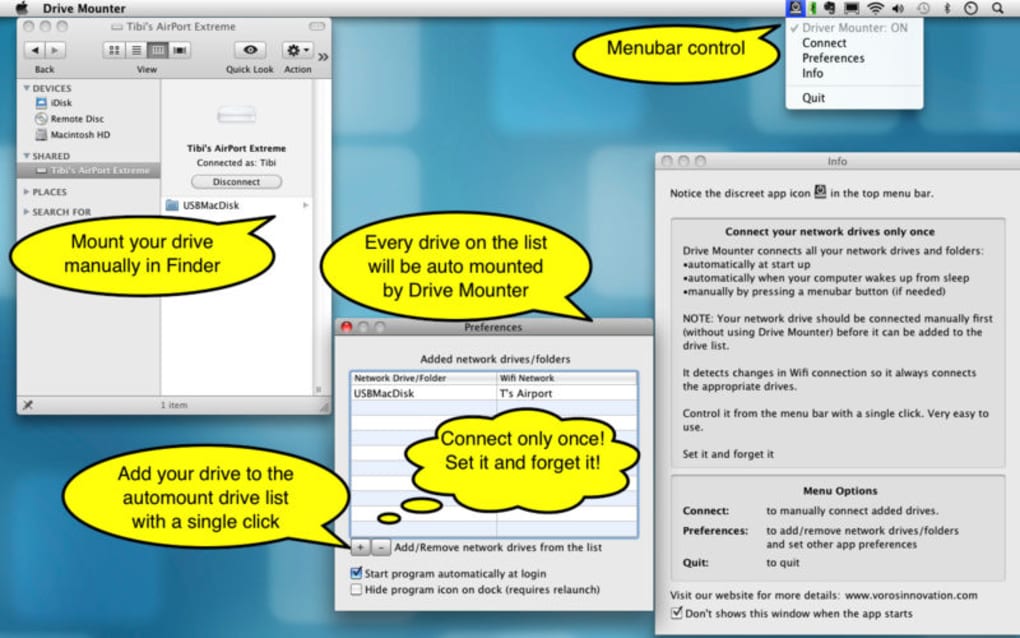
- Map a drive: After the scan completes (usually within 10–15 seconds), you’ll see a list of available network shares. Click the “Mount” button next to the desired share, assign a drive letter (Windows) or confirm the volume name (macOS), and click “OK.” The drive appears instantly in File Explorer or Finder.
- Fine‑tune preferences: Open the Settings pane to adjust scan intervals, set custom icons, or enable the premium “Scheduled Sync” feature if you have purchased a license.
Compatibility: Drive Mounter is built for modern desktop operating systems. Officially supported platforms include:
- Windows 7, 8, 8.1, 10, 11 (both 32‑bit and 64‑bit)
- macOS 10.12 Sierra and later (Intel‑based and Apple Silicon via Rosetta 2)
While the core application is designed for Windows and macOS, there are plans to release an Android and iOS companion app that will let you browse mounted shares from mobile devices. Until then, the desktop version remains the most reliable way to keep network drives constantly available.
From a security standpoint, the installer is signed with a valid code‑signing certificate, and the download page uses HTTPS with a valid SSL certificate. Automatic updates are delivered through a secure channel; the app checks for new versions weekly and prompts you to install the latest stable release, ensuring you always benefit from bug fixes and performance improvements.
Overall, the installation process takes less than five minutes, and the usage experience mirrors the familiar drag‑and‑drop paradigm of native file explorers, reducing the learning curve for both novice and advanced users.
Conclusion, Pros & Cons, FAQ & How to Get Started
Pros & Cons
- Fast automatic discovery of SMB, AFP, and NFS shares.
- Zero‑configuration mounting saves time.
- Secure credential storage using DPAPI/Keychain.
- Lightweight background service with minimal resource usage.
- Free version includes all essential features.
- No native Linux support (planned for future release).
- Advanced scheduling and sync require a paid license.
- Initial scan may miss shares on heavily firewalled networks.
Frequently Asked Questions
Can Drive Mounter map drives from a VPN network?
Yes. As long as the VPN tunnel provides access to the remote subnet, Drive Mounter will detect and mount shares just like on a local LAN. You may need to adjust the scan interval in Settings for optimal performance over slower VPN connections.
Is there a limit to the number of drives I can map?
No hard limit exists. Drive Mounter can handle dozens of mapped drives simultaneously. However, Windows limits the number of drive letters to 26 (A‑Z), so you may need to use mount points on macOS if you exceed that count.
How does Drive Mounter protect my passwords?
On Windows, passwords are encrypted with the Data Protection API (DPAPI) tied to your user account. On macOS, they are stored in the Keychain. Neither the application nor third parties can read them in plain text.
Can I use Drive Mounter with cloud storage services like OneDrive or Google Drive?
Drive Mounter focuses on SMB/AFP/NFS network shares. Cloud services that expose a network drive (e.g., via third‑party sync clients) can be mapped, but native integration is not currently provided.
Is there a trial version for the premium features?
Yes. A 14‑day free trial unlocks all premium capabilities, including scheduled sync, detailed logging, and priority support. No credit card is required; simply activate the trial from the Settings pane.
Final Thoughts & Call to Action
Drive Mounter fills a genuine gap in the Windows and macOS ecosystems by removing the manual steps traditionally required to connect to networked storage. Its blend of automatic discovery, secure credential handling, and lightweight performance makes it a must‑have utility for anyone who works with shared files on a regular basis. Whether you are safeguarding backups, streaming media, or simply accessing a shared office folder, Drive Mounter delivers a reliable, “set‑and‑forget” experience.
Ready to streamline your network drive management? Free download is just a click away. Install the app, let it scan your network, and enjoy instant access to all your storage devices without the hassle of repetitive mapping. For power users, consider the 14‑day premium trial to explore advanced scheduling and synchronization features.
Don’t let disconnected drives slow you down—download Drive Mounter today and keep your files always within reach.
Guides & Tutorials for Drive Mounter
How to install Drive Mounter
- Click the Preview / Download button above.
- Once redirected, accept the terms and click Install.
- Wait for the Drive Mounter download to finish on your device.
How to use Drive Mounter
This software is primarily used for its core features described above. Open the app after installation to explore its capabilities.
User Reviews for Drive Mounter 0
No reviews found





.webp)